
How Do I Upload Content To The Hummingbirds Platform?
Step 1: Log Into the Platform
Go to hummingbirds.com and log in with your creator account.
From your dashboard, head to the My Campaigns tab.
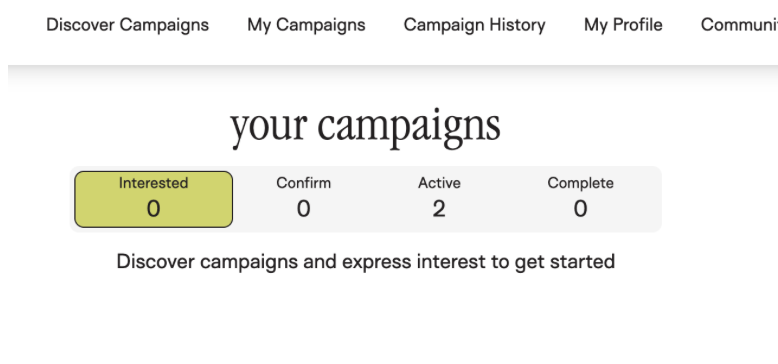
Step 2: Select the Campaign
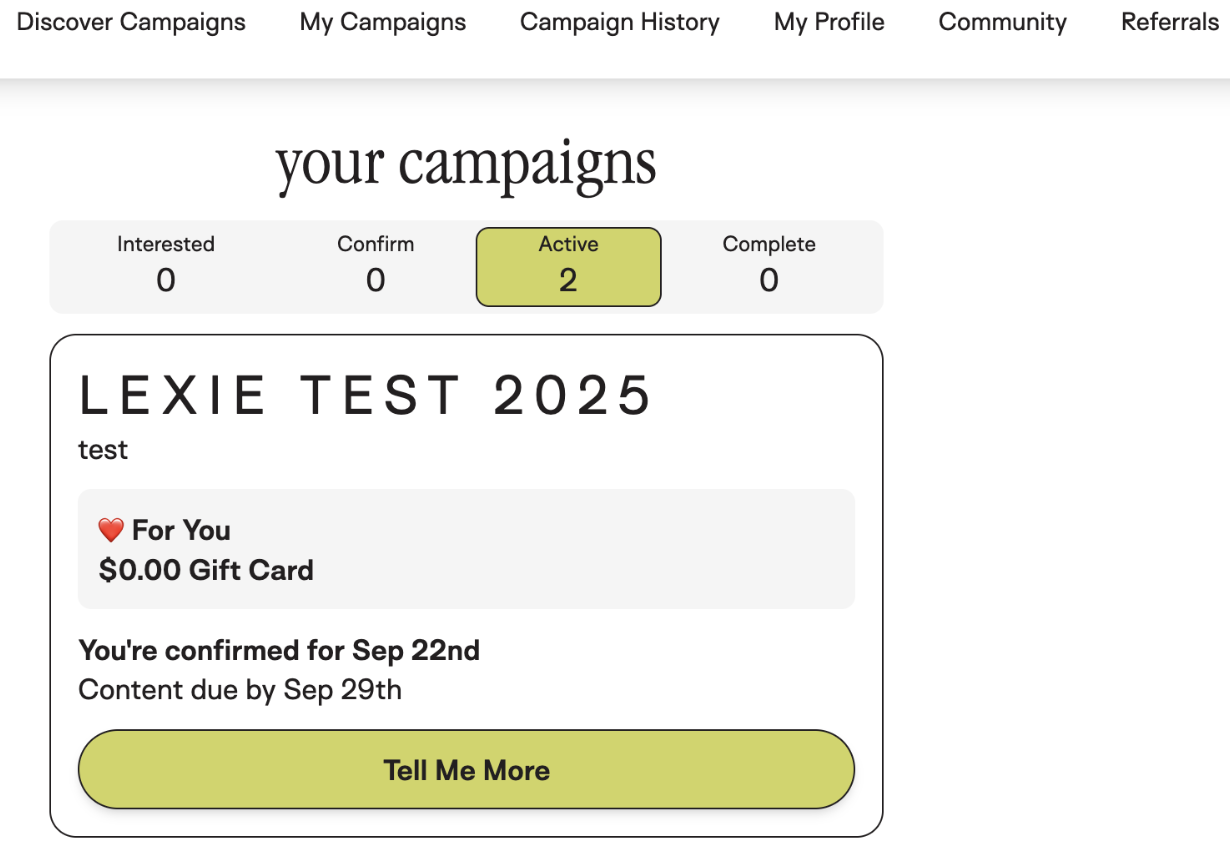
Click on active campaigns and select the campaign you want to upload content for.
On the campaign page, you’ll see an Upload Content button.
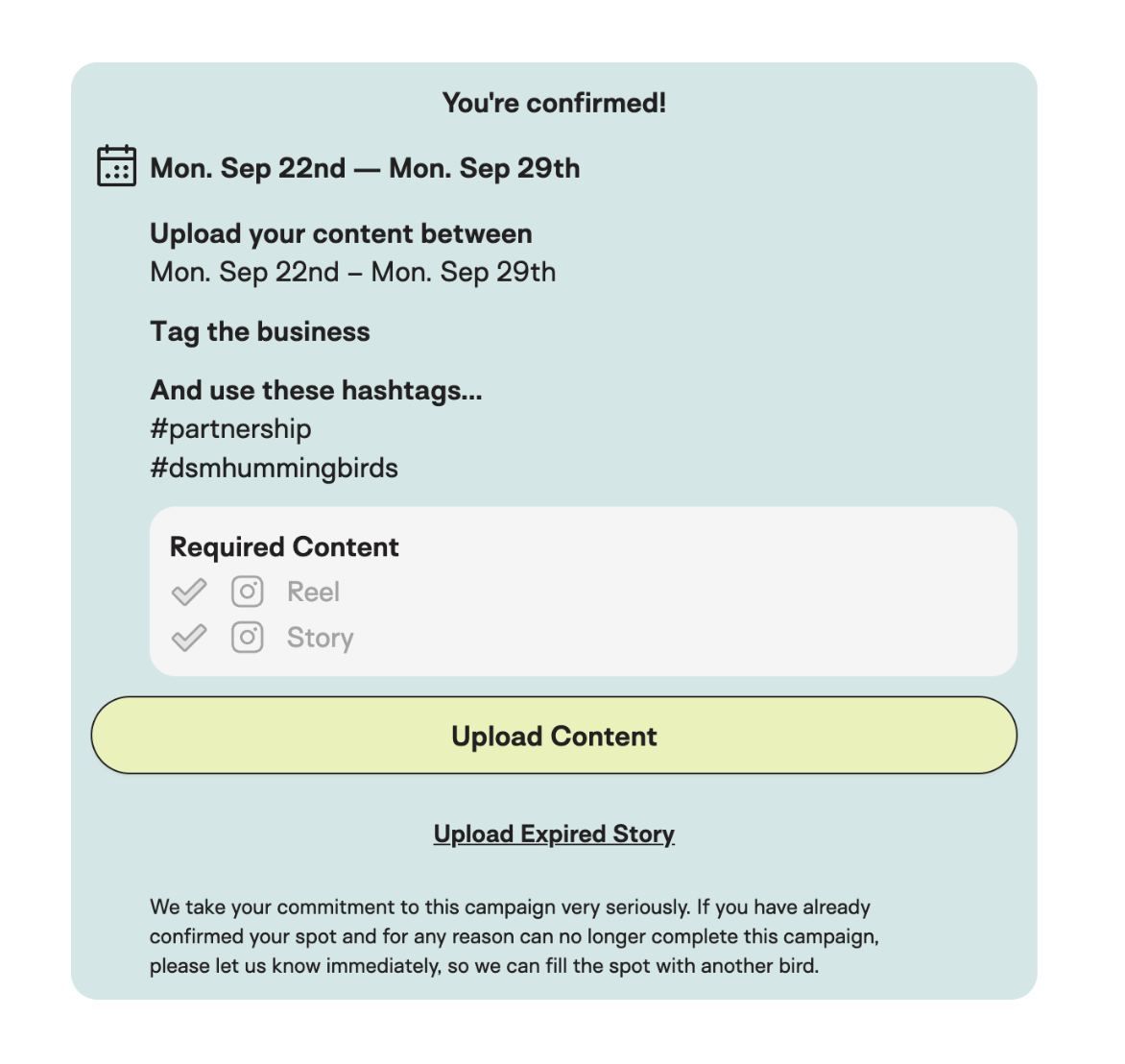
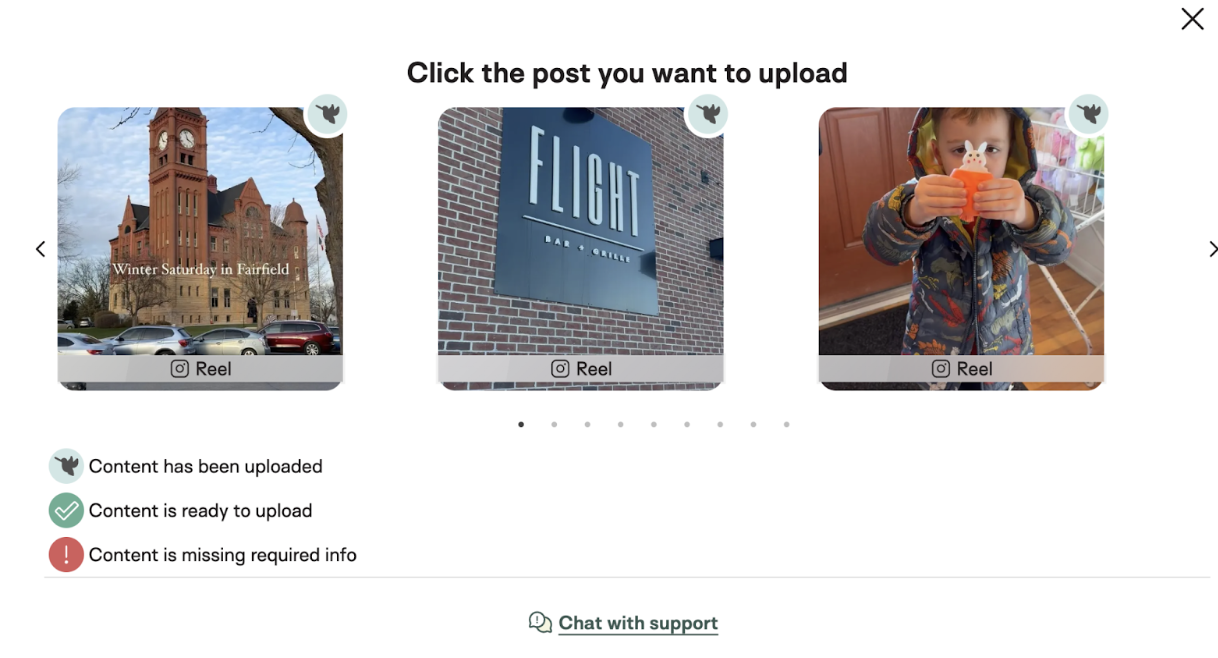
Step 3: Choose the Content Type
Select whether you’re uploading a Story, Reel, or Grid Post.
Each option will show you the requirements specific to that type.
Step 5: Double-Check Tags and Hashtags
Your upload will only be detected if it includes all required tags and hashtags from the campaign brief in the caption itself!
If your post isn’t being recognized:
Remove and re-add the required hashtags in your caption.
Make sure brand @mentions are spelled exactly as required!
⚠️ Still not showing up? Try again after making changes. If it’s still not detected, head to troubleshooting (below).
Step 6: Confirm Upload
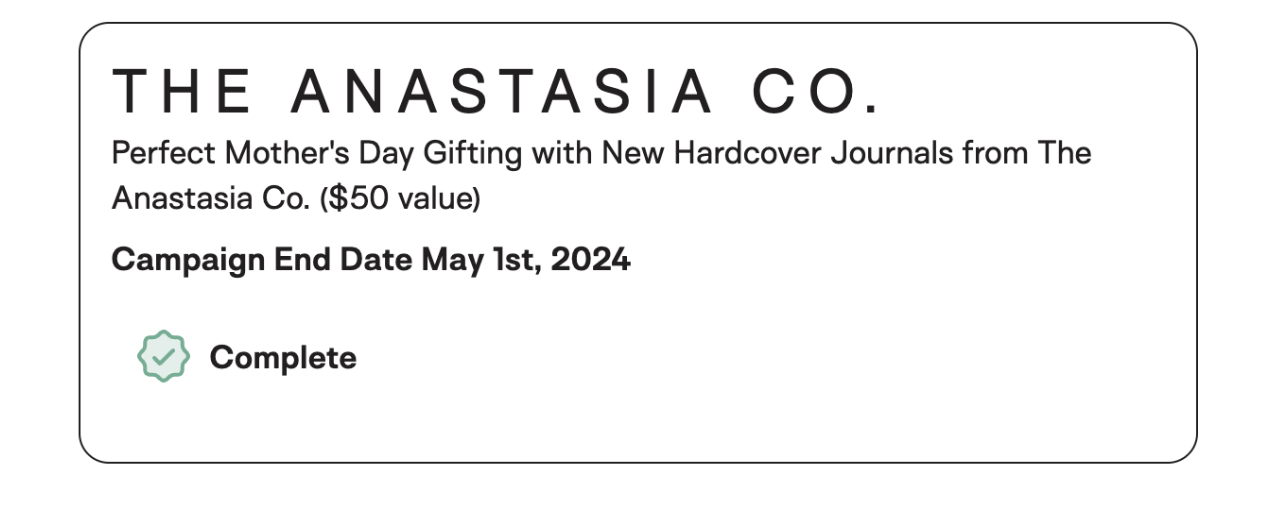
After submitting, you’ll see your campaign update as completed to reflect your upload.
Once synced, your content’s metrics will begin to populate automatically!
Troubleshooting
Spinning bird animation? This usually means Meta is still syncing. Try logging out of Instagram, removing Hummingbirds from Websites & Permissions, and reconnecting on the platform.
Tags not matching? Check carefully for typos or spacing errors in hashtags and mentions. Re-enter them in your caption.
Story expired? Repost the story or add the archived link of the original story!
Still Need Help?
If you’ve followed the steps and your upload still isn’t showing up, please reach out to us at help@hummingbirds.com with:
The campaign name
A screen recording of your upload attempt
Any error messages you’re seeing
We’ll help get it resolved quickly!