
Creating and Managing Nests
What Is a Nest?
A Nest is a personalized collection of products you create on Hummingbirds. You can use Nests to organize products you love, keep track of products you'd like to try, and share product recommendations with others.
You can create multiple Nests and organize them however you'd like.
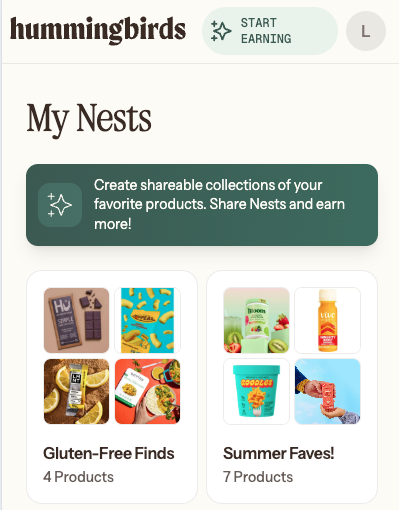
Creating a Nest
Any registered Hummingbird can create a Nest.
When creating a Nest, you'll choose a name and add products that fit your collection.
Some examples include:
Healthy Snacks
Family Favorites
Summer Essentials
My Whole Foods Picks
Products I Want to Try
There is no requirement that products have an active Offer to be included in a Nest.
Adding Products to a Nest
Products can be added to a Nest from several places throughout Hummingbirds.
You can add products:
While browsing available products and Offers
From within an existing Nest
During the Nest creation process
A product can be added to a Nest whether or not it currently has an active Offer.
Why Add Products Without Active Offers?
A product doesn't need to have an active Offer to belong in your Nest.
In fact, many Hummingbirds use Nests to keep track of products they already love or would like to try in the future.
If an Offer is added to a product in your Nest later, it will automatically appear on that product within your Nest. You won't need to manually add the Offer yourself!
This makes Nests a great way to keep track of your favorite products and quickly spot new Offer opportunities as they become available.
Managing Your Nests
You can create multiple Nests to organize products in different ways.
For example, you may choose to create separate Nests for:
Different retailers
Product categories
Seasonal shopping
Family favorites
Products you’re interested in trying later
Many Hummingbirds create multiple Nests to keep their favorite products organized and easy to share.
Your Nests and your saved Offers are managed separately.
Adding a product to a Nest does not automatically save its Offer for you to use, but it will display as an offer available in your Nest that you can share with others.
There is currently no limit to the number of Nests you can create.
Why Create Multiple Nests?
Many Hummingbirds create multiple Nests to organize products in different ways.
For example, you might create separate Nests for:
Products you regularly purchase
Products you'd like to try in the future
Different retailers, such as Whole Foods or Target (example: ”My Whole Foods Faves!”)
Seasonal favorites and holiday finds (example: Summer Essentials or 4th of July Cookout!)
Themes like: Healthy snacks, beverages, Budget-Friendly Finds, beauty products, Protein Picks, or other categories
Products you'd like to share with friends and family
Because products can remain in a Nest even when they don't have an active Offer, Nests are a great way to keep track of your favorite products and discover new Offer opportunities when they become available.
Sharing a Nest
Every Nest can be shared using a unique share link.
Nests are private by default and are only visible to others when you choose to share them.
Anyone who receives your Nest link can browse the products included in that Nest.
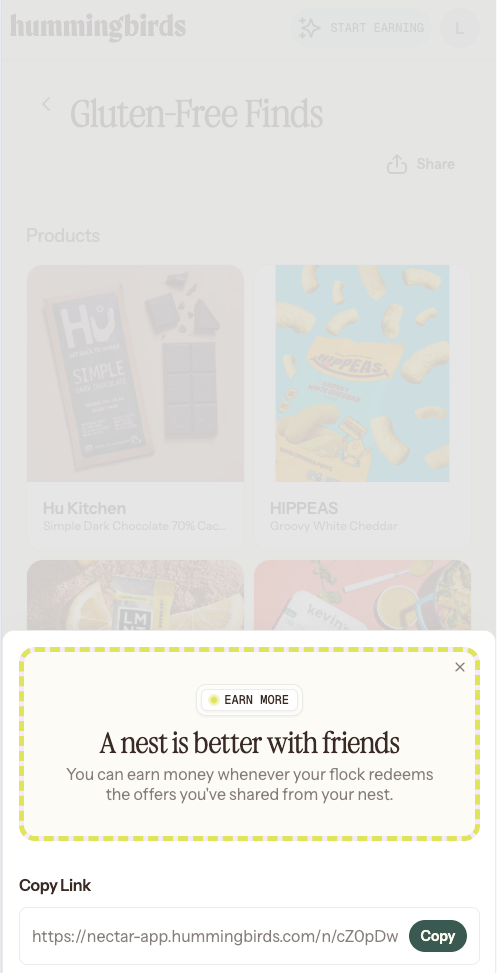
Ideas for Sharing Your Nest
You can share your Nest anywhere you'd normally recommend products to others.
Many Hummingbirds share their Nests:
Directly with friends and family through text messages
In group chats
On social media
In their Instagram, TikTok, or other social media bios
Through newsletters or email lists
In online communities where product recommendations are welcome
Because Nest links work nationally, anyone who receives your link can browse the products in your Nest and redeem eligible Offers available to them.
Viewing Active Offers in a Nest
Products in a Nest may or may not have active Offers.
When an active Offer is available for a product in your Nest, you'll be able to see it on the product.
If an Offer expires or becomes unavailable, the product will remain in your Nest.
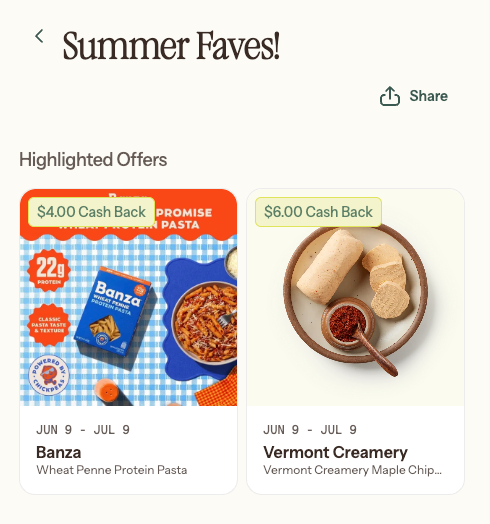
Important Reminder
Adding a product to a Nest does not reserve Offer inventory.
If you're interested in redeeming an Offer, save the Offer directly to My Offers and complete your redemption while the Offer is still active.