
How Do I Upload a Receipt for an Offer?
To earn cash back from an Offer, you’ll need to make your qualifying purchase in person, inside an Eligible Retailer, and upload a photo of the physical receipt you receive at checkout.
At this time, Offers do not support purchases made through:
Online ordering
Delivery services, such as Instacart
Curbside or store pickup
Retailer apps or other purchases that generate a digital receipt
Even if you purchase the correct product from an Eligible Retailer, the purchase must be made in person inside the store and include a physical receipt to qualify for cash back.
As of Aug. 24, 2026: “Upload Receipt” opens your camera. Have your physical receipt with you when you’re ready to upload. Camera roll photos no longer work.
Before You Upload Your Receipt
First, make sure you still have your physical receipt with you.
When you’re ready:
Open the Offer you purchased.
Tap Upload Receipt.
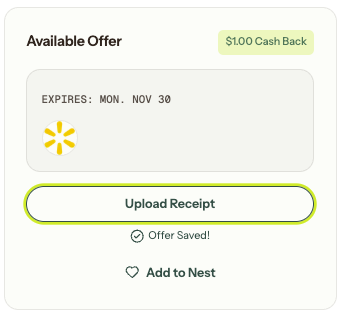
Click the "Take Photo" button to snap a pic of your physical receipt.
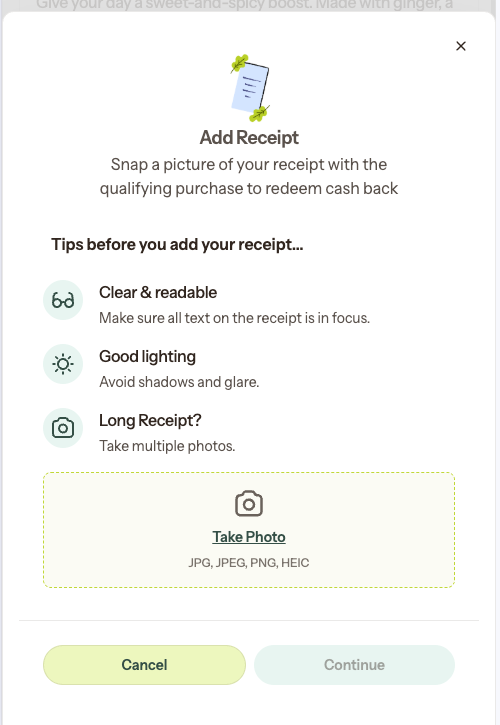
Lay the receipt flat and make sure the entire receipt is clearly visible.
Complete the upload.
No receipt on you? Grab it and come back when you have it.
Keep Your Receipt After You Upload
Don’t throw your receipt away just yet!
Receipt review can take up to 48 hours.
Hold onto your physical receipt until the cash back is in your Offers Wallet. Once your cash back lands, you’ll know your redemption has cleared.
I Purchased Products for Multiple Offers on the Same Receipt. What Should I Do?
One physical receipt can cover every saved Offer it matches.
However, you’ll still need to complete a separate upload for each Offer you want to redeem.
If you’ve saved multiple Offers and purchased the qualifying products during the same shopping trip, we recommend uploading them all while you’ve got the receipt with you.
For example, if the same receipt includes qualifying purchases for three saved Offers, you’ll upload that receipt once for each of those three Offers.
Can I Upload a Receipt Photo From My Camera Roll?
No.
As of Aug. 24, tapping Upload Receipt opens your camera so you can snap a pic of the physical receipt you have with you.
A photo that was previously saved to your camera roll can no longer be used.
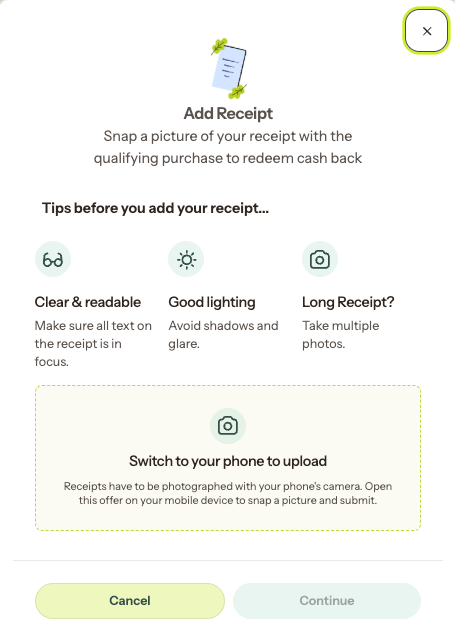
If you try to upload from a computer instead of your phone, the platform will prompt you to switch to your phone to upload.
Can I Use a Digital or Emailed Receipt?
No.
Offers require a photo of your physical receipt from an eligible in-store purchase.
Digital receipts, emailed receipts, and app receipts don’t work for Offer redemptions.
Can I Take a Picture of My Receipt at the Register?
Yes!
You can upload your receipt while you’re still at the store. Just tap Upload Receipt and snap a pic of your receipt from there.
What doesn’t work is taking a picture using your phone’s camera separately and trying to upload that saved photo later.
What If I Already Threw My Receipt Away?
You’ll need your physical receipt to complete the upload.
That’s why we recommend keeping your receipt with you until you’ve uploaded it for every Offer from that shopping trip, and then holding onto it until the cash back is in your Offers Wallet.
How Long Does Receipt Review Take?
Receipt review can take up to 48 hours.
After uploading, hold onto your physical receipt while your redemption is being reviewed. Once your cash back appears in your Offers Wallet, you’ll know it has cleared.
Tips for a Successful Receipt Upload
When snapping your receipt:
Lay it flat.
Make sure the whole receipt is in frame.
Make sure the receipt is easy to read.
Have the physical receipt with you when you tap Upload Receipt.
If the receipt includes purchases for multiple saved Offers, upload it for each matching Offer while you’ve got it with you.
Hold onto your receipt until your cash back is in your Offers Wallet.
And before heading to the store, remember to confirm that the Offer is still active. Offers can fill or expire, so saving an Offer does not guarantee it will still be available when you’re ready to redeem it.